Are you a fashion designer, clothing brand owner, or online apparel seller still relying on static mannequin photos or flat lays to showcase your inventory?
If your social media engagement is plateauing or your products aren’t moving fast enough, the issue might not be your clothes, but how you’re presenting them.
When customers shop for clothing online, they don’t just buy a product; they buy the feeling of wearing that product. They are buying a version of themselves that looks confident, stylish, and put-together. A mannequin simply can’t evoke that emotion. There’s no movement, no context, and no life. Your customer’s brain has to work overtime just to imagine how the outfit fits, flows, and moves in real life.
By replacing stiff mannequin shots with a realistic AI fashion model walking naturally and showcasing your garments in motion, you eliminate that friction.
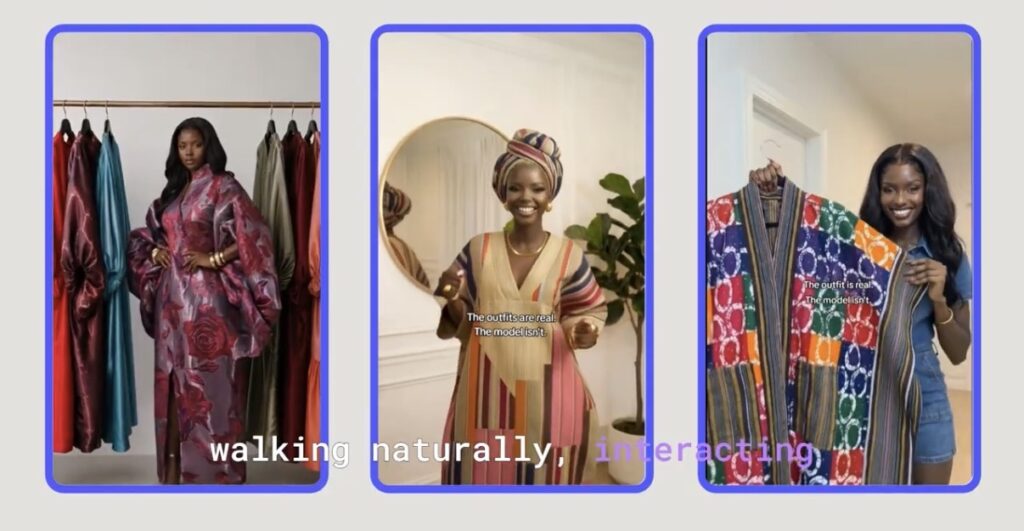
Recently, a fashion brand sent over basic photos of four shirts on a mannequin. Using accessible AI video generation tools, those photos were transformed into a seamless studio video featuring a model walking naturally in all four outfits, with zero traditional photoshoots required.
The result? The brand posted the video on social media, and the collection sold out within one hour, driving demand so high that customers had to join a waiting list.
Here is the exact step-by-step workflow to recreate these results for your own clothing brand using ChatGPT, Kling AI, and CapCut.
High-Level Workflow Overview
| Step | Task | Key Tool Used | Primary Output |
| 1 | Select AI Model | ChatGPT Image Model | Model Face & Body Consistency |
| 2 | Build Base Image | ChatGPT | Model dressed on a walking pad with studio background |
| 3 | Swap Outfits | ChatGPT | 4 high-res base images across all product SKUs |
| 4 | Animate Images | Kling AI (v2.5) | 4 realistic video clips featuring fluid motion |
| 5 | Final Edit | CapCut | Polished, music-backed social media Reel/TikTok |
Step 1: Establish Your Consistent AI Fashion Model
Before generating full-body shots, you need a consistent AI model face and body type that represents your brand aesthetic.
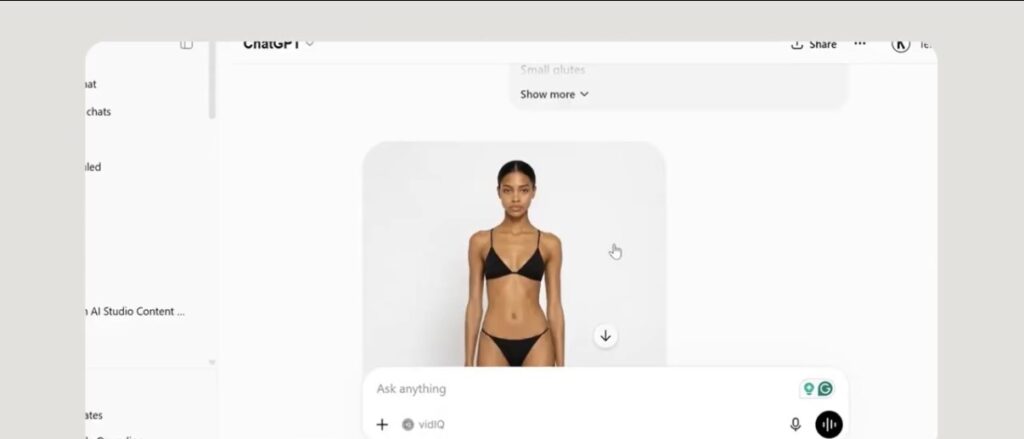
Note: If you haven’t created your brand’s custom AI model yet, generate a dedicated face-and-body reference image first. Follow the instruction in my How To Create Consistent AI Models For Your Fashion Brand blog post to generate the model you will use in this tutorial. Once you have this, keep this model image saved on your device, as it will serve as your primary visual anchor (referred to as Image 1 in your prompts).
Step 2: Build Your Base Studio Image
Next, create the primary base image. This places your AI model inside a high-end environmental background (e.g., a modern studio space), dressed in your first clothing piece, and positioned on a walking pad.
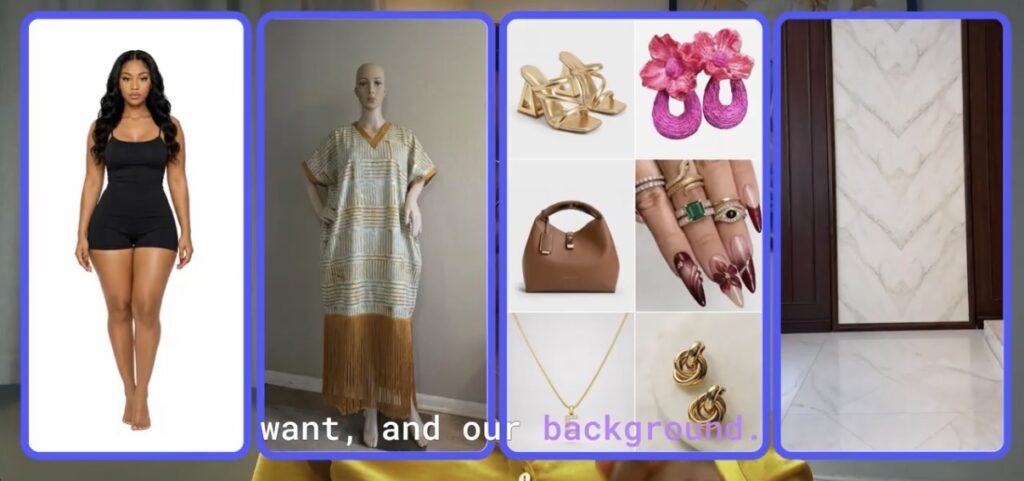
What You Need to Upload to ChatGPT:
- Image 1: Your AI model reference picture.
- Image 2: Your desired background image (a real-life studio photo works best for maximum realism).
- Image 3: The product photo (your garment on a mannequin or hanger).
- (Optional) Images 4: Specific styling accessories (heels, handbags, jewelry).
Recommended ChatGPT Prompt:
A straight-on full-body shot of the woman in Image 1 walking confidently on a walking pad inside the studio background shown in Image 2. She is wearing the exact clothing item from Image 3. Style her with high-heeled sandals, a structured mini bag, and minimal gold jewelry for a fashionable, dressed-up look. 9:16 aspect ratio.
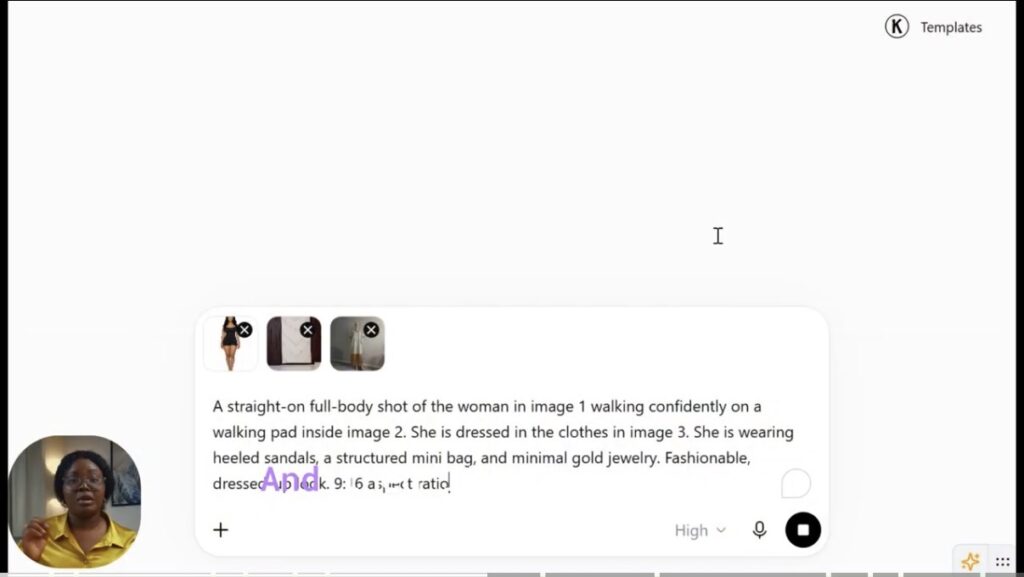
Pro Tip: If you want her to wear a specific real-world shoe or bag from your inventory, upload those items as separate reference images and explicitly instruct ChatGPT: “She is wearing the bag in Image 4 and the shoes in Image 5.”
Once ChatGPT generates the image, download it to your desktop. This generated photo serves as your anchor image for the remaining outfit swaps.
Step 3: Dress Your Model in the Remaining Outfits
Now that your base environment, lighting, model pose, and setup are set, you can quickly generate images for the rest of your collection without re-building the studio prompt from scratch.
The Outfit Swap Process:
- Open a new chat or continue in your existing ChatGPT session.
- Upload your newly generated base image (let’s call this Image 1).
- Upload the flat photo of your second clothing product (Image 2).
Prompt to Swap Outfits:
Change the outfit that the model in Image 1 is wearing to match the clothing item shown in Image 2. Keep the model's face, body, studio environment, lighting, walking pad, and overall pose identical to Image 1.
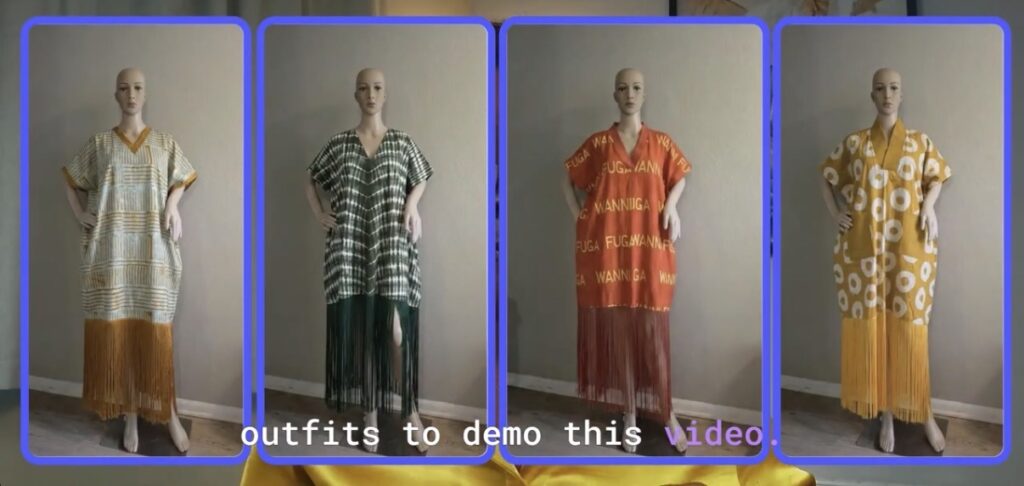
Repeat this exact step for all remaining clothing items in your line. By the end of this step, you will have four high-resolution, fully styled studio images without spending thousands of dollars hiring models, renting studios, or booking photographers.
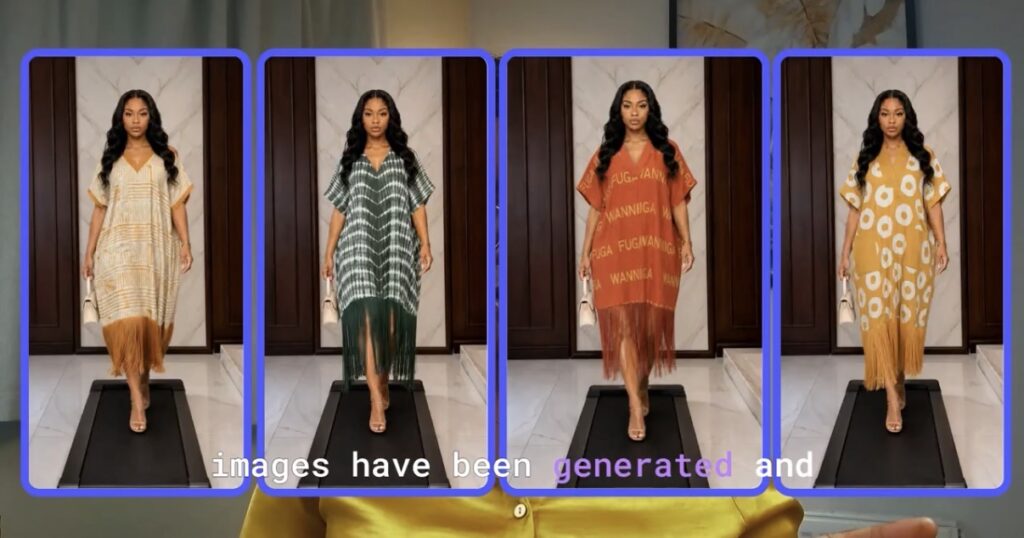
Step 4: Animate Your Images Using Kling AI
With your styled static images ready, the next phase is converting them into lifelike video clips using image-to-video AI generation.
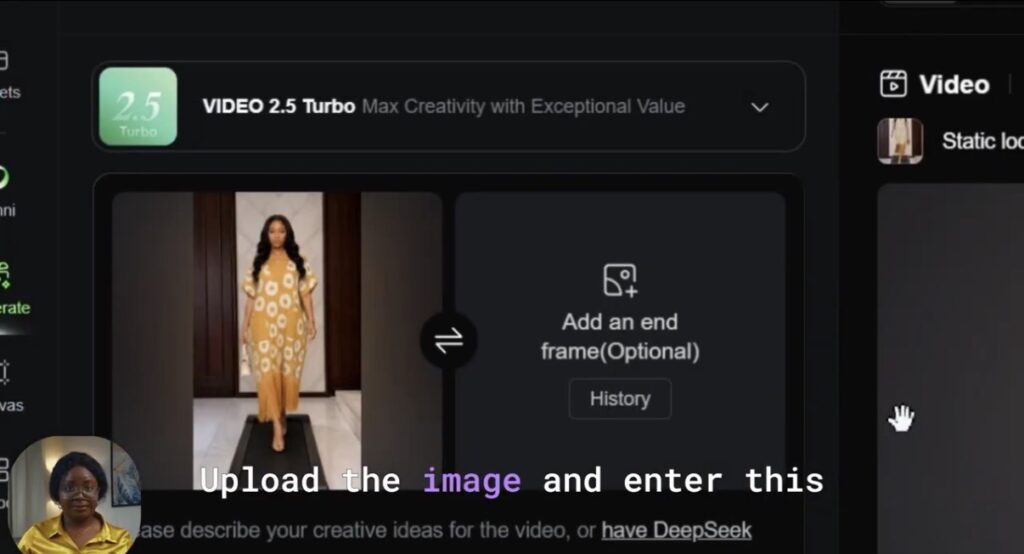
Step-by-Step Animation Process:
- Go to Kling.ai (or open the Kling mobile app).
- Select Kling 2.5 (Top) as your image-to-video generation model.
- Upload your first styled image.
- Set the clip duration to 5 seconds (this is ideal for short-form video hooks on Instagram Reels, TikTok, and YouTube Shorts).
- Set your target resolution (select 1080p for maximum clarity on social feeds).
Motion Prompts & Varied Actions:
To keep your final video montage engaging, introduce subtle variations in movement across your four clips rather than using the exact same motion prompt every time:
- Clip 1 Prompt:
Full body shot, the model is walking naturally on the walking pad, slight hair sway, subtle clothing movement, camera remains stable, high photorealism. - Clip 2 Prompt:
The model walks forward smoothly on the walking pad, adjusts her handbag slightly from one hand to another, confident smile, natural cloth movement. - Clip 3 Prompt:
Model walking naturally, flips her hair gently to one side while maintaining stride, soft studio lighting reflections. - Clip 4 Prompt:
Full body video, model walking steadily on the walking pad, subtle body motion, dynamic fashion runway feel.
Generate all four video clips and download the files to your device.
Step 5: Edit and Polish in CapCut
Now it’s time to assemble your clips into a high-converting social media video.
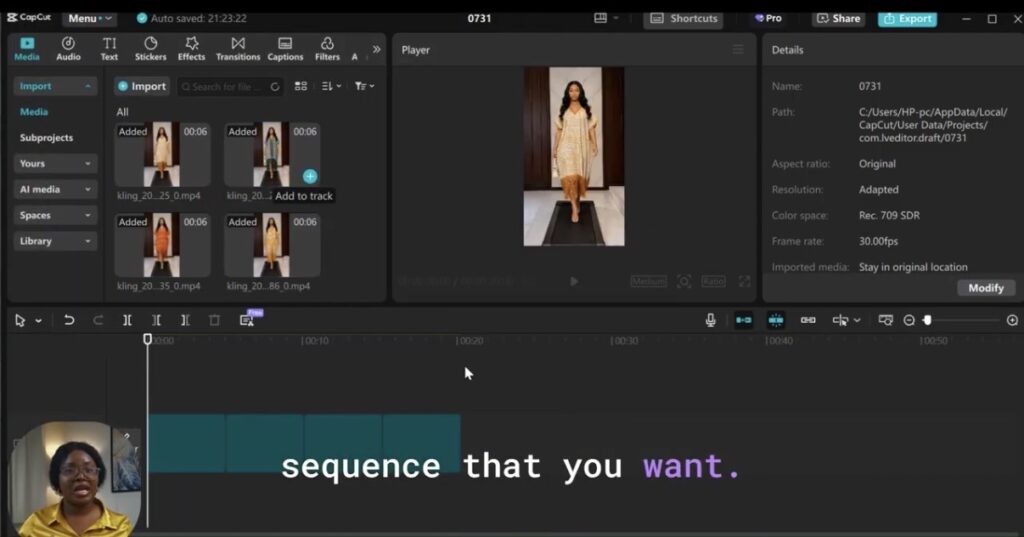
- Open CapCut (or your preferred mobile/desktop video editor) and create a new project.
- Import all four animated video clips.
- Trim off any unnatural motion or glitches at the beginning or end of each clip.
- Arrange the clips in a fast-paced sequence (1.5 to 2.5 seconds per outfit works best to hold viewer attention).
- Add trending background music or high-energy audio popular in fashion niches.
- Export the final video in 1080p / 4K resolution at 30 or 60 fps.
AI Fashion Video Marketing Gives You a Competitive Edge
If you are an e-commerce clothing business owner or fashion seller relying strictly on flat photos or static mannequin displays, adopting AI fashion video generation offers a massive unfair advantage:
- Drastically Lower Production Costs: Eliminate recurring expenses for studio rentals, professional camera gear, agency models, and lighting setups.
- Higher Conversion Rates & Organic Reach: Short-form video algorithms (Instagram Reels, TikTok, YouTube Shorts) heavily favor high-definition video content over static carousel posts.
- Faster Time-to-Market: Turn flat inventory samples into published, high-converting promotional videos in less than an hour.
- Enhanced Visual Storytelling: Customers get to see how fabric drapes, flows, and reacts to movement, helping them visualize owning and wearing the garment.
Fashion entrepreneurs who leverage these AI visual tools today will outperform competitors still relying on outdated product presentation methods. By showing your products in motion, you elevate your brand perception, build instant trust with shoppers, and convert casual scrollers into paying customers.